Cloudflare Build Notifications via Email Routing and Email Worker
Part of a series
- Networking & Infrastructure Series (12 of 12)
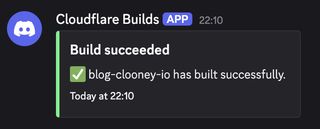
Send Workers / Pages build status (succeeded / failed) to a webhook using Cloudflare Email Routing and an Email Worker as the glue layer. Discord is used as the example destination, but the same pattern works for Slack, Telegram, Linear, or any other service that accepts an incoming webhook.
Here is the kind of Discord message this setup produces:
Why this approach?
Cloudflare Workers and Pages can send notification emails when a deployment finishes or fails. Email Routing lets you intercept those emails with a Worker instead of forwarding them to a regular inbox. That Worker can then parse the email body for the actual status detail, build a formatted payload, and fetch() a webhook URL.
No third-party services, no secrets leaving Cloudflare, and the whole thing runs on the free tier.
Prerequisites
- A Cloudflare account with a domain managed in Cloudflare DNS
- Email Routing enabled on that domain (Dashboard > Email > Email Routing)
- A Workers or Pages project with deployment notifications turned on
- A Discord server where you have permission to create webhooks
Step 1 -- Enable deployment notifications
Workers
Go to Workers & Pages > your Worker > Settings > Notifications. Add your routing address (e.g. builds@yourdomain.com) as the notification email for deployment success and failure events.
Pages
Go to Workers & Pages > your Pages project > Settings > Notifications. Add the same routing address for the build events you care about.
Step 2 -- Create a Discord webhook
In your Discord server, go to Server Settings > Integrations > Webhooks > New Webhook. Pick the channel, give it a name, and copy the webhook URL. It will look like:
https://discord.com/api/webhooks/<id>/<token>
Store this as a secret on your Email Worker (see step 4).
Step 3 -- Create the Email Worker
There are two ways to get to Email Workers in the dashboard.
Option A: Go to Workers & Pages > Create > Worker, choose "Start with Hello World!", and give the Worker a name like build-notifier.
Option B: Go directly to Email > Email Routing > Email Workers, which takes you to the same Worker creation flow.
Either way, once the Worker is created, replace the default script with the following. No external dependencies are needed -- message.raw is a ReadableStream and wrapping it in a Response gives you a straightforward .text() call to get the raw MIME source, which is enough to check for status keywords.
export default {
  async email(message, env, ctx) {
    const subject = message.headers.get("subject") ?? "(no subject)";

    // Read the raw MIME source -- no library needed
    const body = await new Response(message.raw).text();

    const project = subject.match(/project ([\w-]+)/i)?.[1] ?? subject;

    const [title, color, description] = /succeeded|success/i.test(body)
      ? ["Build succeeded", 0x57f287, `✅ ${project} has built successfully.`] // green
      : /failed|failure|error/i.test(body)
        ? ["Build failed", 0xed4245, `❌ Build failed: ${project}`] // red
        : ["Unknown state", 0x888888, `Unknown build state: ${project}`]; // gray

    await postToDiscord(env, { title, description, color });
  },
};

async function postToDiscord(env, { title, description, color }) {
  const payload = {
    username: "Cloudflare Builds",
    avatar_url: "https://workers.cloudflare.com/resources/logo/logo.svg",
    embeds: [
      {
        title,
        description,
        color,
        timestamp: new Date().toISOString(),
      },
    ],
  };

  const res = await fetch(env.DISCORD_WEBHOOK_URL, {
    method: "POST",
    headers: { "Content-Type": "application/json" },
    body: JSON.stringify(payload),
  });

  if (!res.ok) {
    const body = await res.text();
    throw new Error(`Discord webhook returned ${res.status}: ${body}`);
  }
}
What this does
- Reads the raw MIME source via
new Response(message.raw).text()-- no dependencies needed. - Extracts a project name from the email subject when possible, falling back to the full subject if it cannot match one.
- Pattern-matches the body text to produce one of three states: "Build succeeded" (green), "Build failed" (red), or "Unknown state" (gray) -- a Discord message is always sent regardless of which state is matched.
- Posts a formatted embed with a short status message and a timestamp.
Discord embed payload notes
The embed payload shape used here is current as of the Discord API. A few things worth knowing:
colormust be a decimal integer, not a hex string. In JS,0x57f287evaluates to the decimal5763719, which is what Discord expects.timestampmust be an ISO 8601 string; Discord renders it in the user's local timezone.embedsis an array and can hold up to 10 embeds per message.usernameandavatar_urloverride the webhook's default display name and avatar for that message only.- At least one of
content,embeds, orattachmentsmust be present or Discord returns a 400.
Step 4 -- Add the webhook secret
In the Worker's Settings > Variables, add a secret (not a plain text variable):
| Name | Value |
|---|---|
DISCORD_WEBHOOK_URL |
The Discord webhook URL you copied in step 2 |
Using a secret keeps the URL out of your source code and out of Cloudflare's plain-text variable store.
Step 5 -- Configure Email Routing
Go to Email > Email Routing > Routing Rules > Custom addresses. Add a rule:
| Field | Value |
|---|---|
| Email address | builds@yourdomain.com (the address you used in step 1) |
| Action | Send to a Worker |
| Worker | build-notifier |
Save the rule. Any email arriving at that address will now be handed directly to your Worker.
How it fits together
Workers / Pages build event
  |  (sends notification email)
  v
builds@yourdomain.com
  |  (Cloudflare Email Routing intercepts)
  v
build-notifier Worker  (email handler)
  |  (reads raw MIME body, builds Discord embed)
  v
Discord webhook  ->  #deployments channel
Customisation ideas
Slack instead of Discord
Slack's incoming webhook payload uses text or blocks instead of embeds. Swap the payload shape; the routing and Worker structure stay identical.
Extract richer detail from the body
The raw MIME source from new Response(message.raw).text() includes the full email content. If the Cloudflare email includes the project name, branch, commit SHA, or build duration, you can pull those out with a regex and add them as fields in the Discord embed for a cleaner presentation.
Filter by project name Parse the project name out of the subject or body and only post to Discord for production deployments, routing staging failures somewhere quieter.
Store a build history Before posting to Discord, write a record to Workers KV or D1 so you have a queryable log of build outcomes over time.
Multiple destinations
Call fetch() multiple times in the same handler -- one for Discord, one for a Slack channel, one to a PagerDuty endpoint when the build fails. Email Routing delivers the message once; the Worker decides where it goes.
Gotchas
- Email Routing must be active on your domain. The custom address will not work on subdomains or external domains you do not control in Cloudflare.
- The Worker must respond quickly. Cloudflare times out email handlers. Keep the
fetch()call direct and avoid chaining multiple slow requests. - Cloudflare's notification email format can change. The body-text matching is a heuristic. If Cloudflare changes their notification wording, update the regex. Check Workers Logs for a build or two before fully trusting the parsing in production.
- Free plan limits. Workers on the free plan allow 100,000 requests per day. Build notifications are low-volume enough that this is not a practical concern.